You can download the LibreOffice extension in the download section of the website, detailed information can be found in the associated GitHub repository:
https://github.com/Slookeur/atomes-libreoffice
How does the atomes extension for LibreOffice works
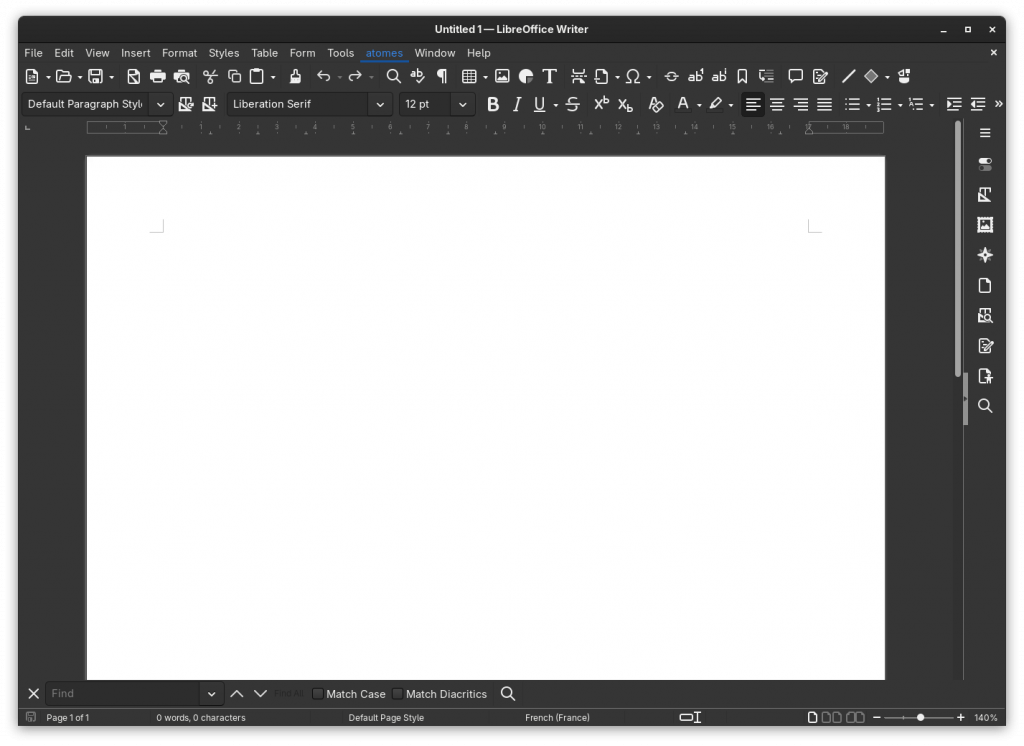
Open any LibreOffice tool (Writer, Calc …) once the extension installed you will see an atomes sub-menu inserted in the top level menu bar:
The extension allows:
- to insert atomes project files into any LibreOffice document
- open any atomes project that was inserted in the LibreOffice document
- tweak the extension options
Inserting an atomes project in a LibreOffice document
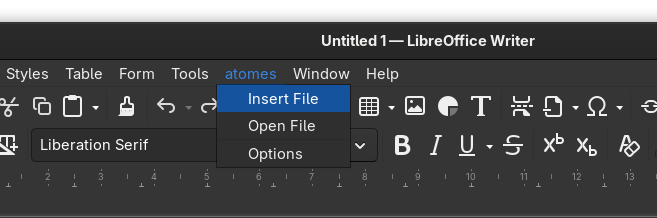
To insert an atomes project in your LibreOffice document select the Insert File option in the extension menu.
A dialog box will open to help your browse your hard drive to select the atomes project to insert:
Once inserted in the LibreOffice document the atomes project is represented by an image that illustrates the content of the project file. This image is generated by atomes and precisely represents the latest snapshot of the project.
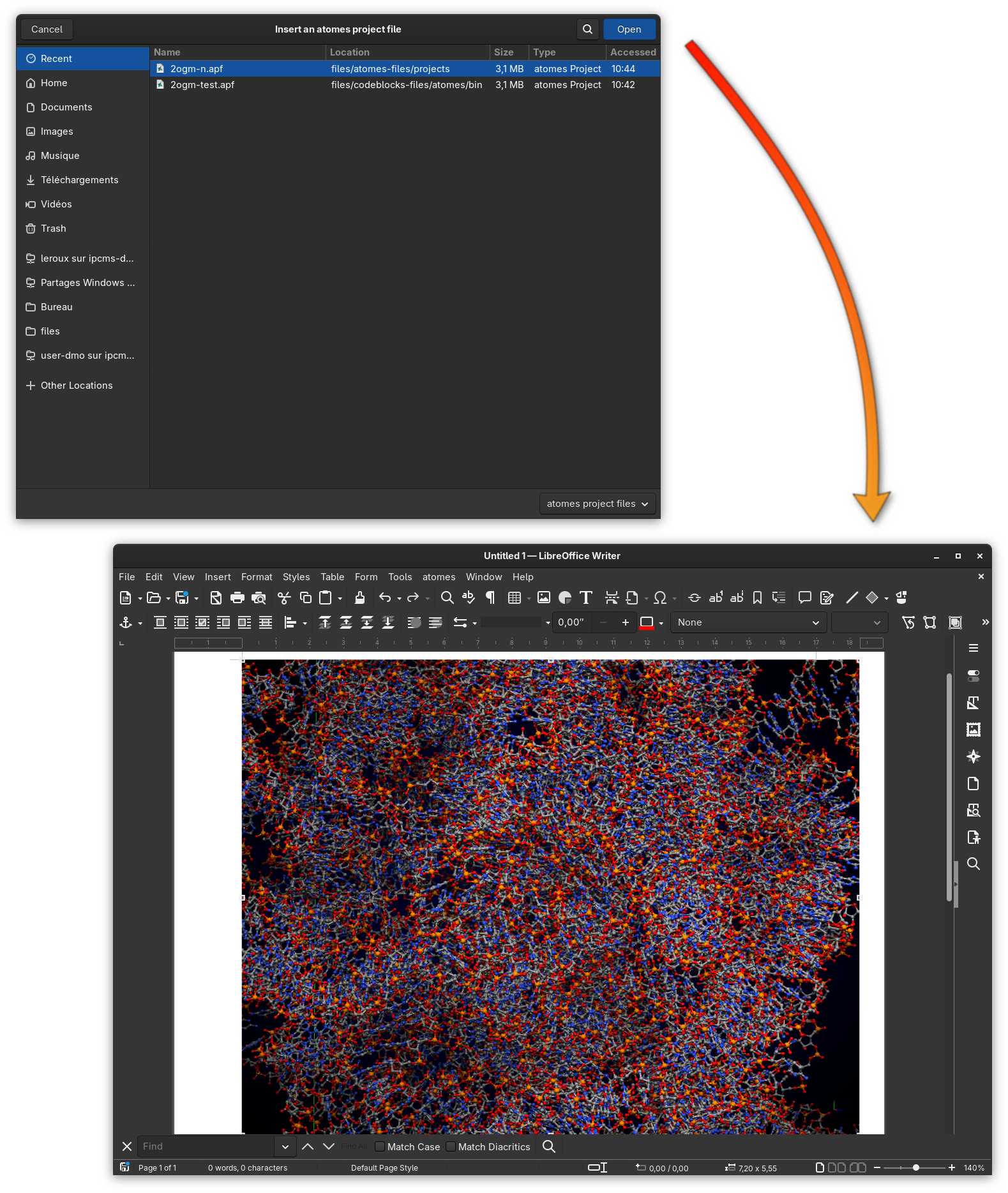
You can move around, resize, reshape this image as any LibreOffice image. The atomes project is now embedded in the LibreOffice document, not that depending on your options the insertion might be done by direct embedding (a copy of the atomes project is inserted in the LibreOffice document zip archive),
or via a symbolic link to the original atomes project file. Note that it is possible to switch between embedding modes at any time using the extension options (see below).
Editing an atomes project embedded in a LibreOffice document
Use the extension menu and select Open File, if only a single atomes project file happens to be embedded in the document this file will be opened immediately otherwise you will be ask to select the projet to open. Alternatively simply double click on the image corresponding to the project you want to open, that does the trick:
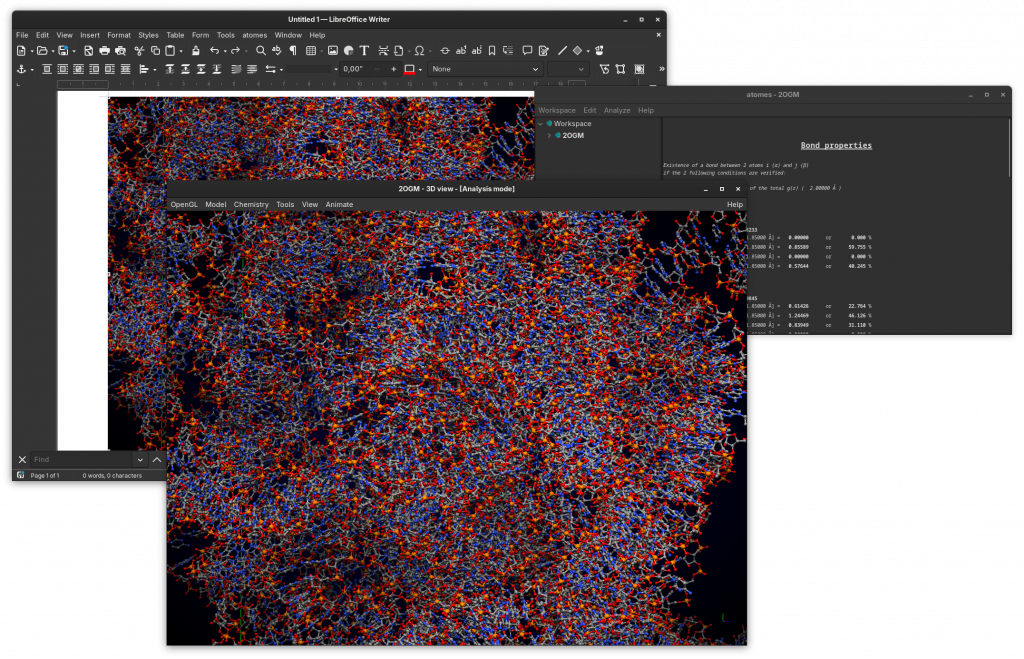
This will open the embedded project using atomes only if at least version 1.3.0 is found on your computer.
Although some restrictions are applied to this embedded version of atomes, for instance it is not possible to create/open other project, you can work with this interface as with the standard one, perform calculation, change the visual aspect …
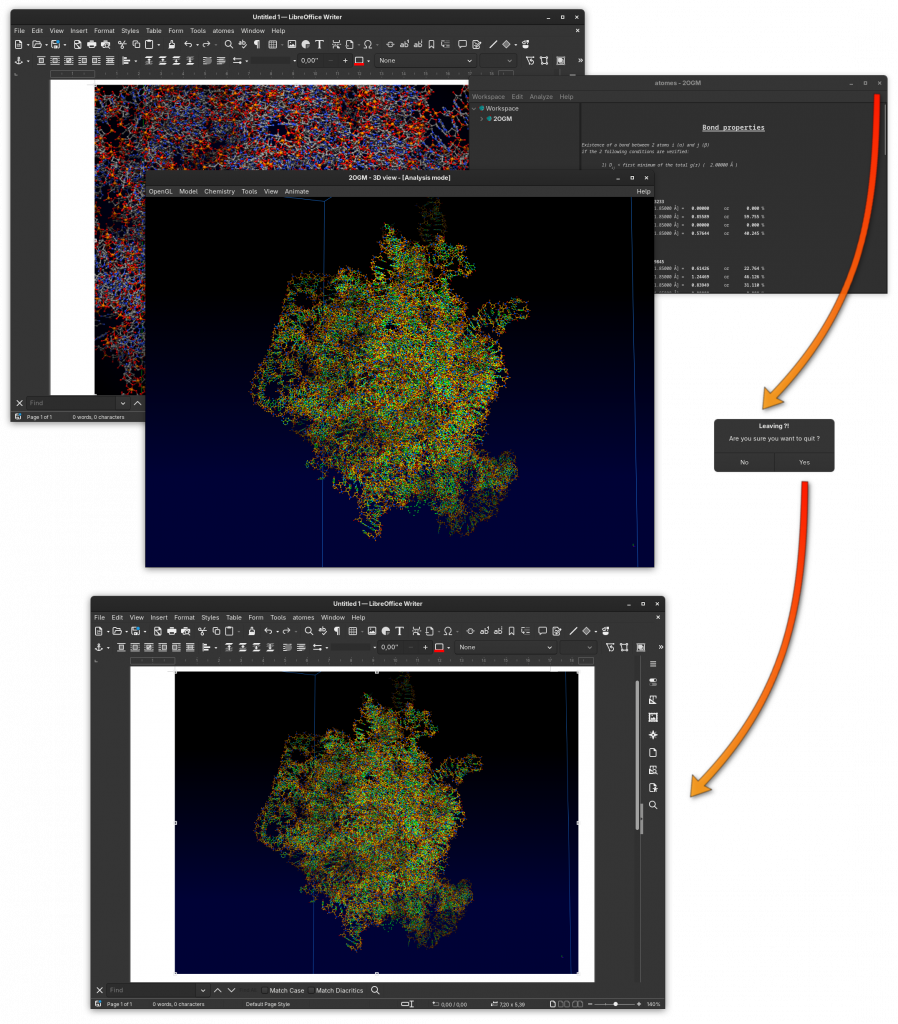
The work done on the project file using this embedded version of atomes will be automatically saved after closing, and the image inserted in the LibreOffice document will be updated accordingly.
The project file will be modified, meaning that if the embedded is done via symbolic link then the target file will be modified !
Accessing the extension options
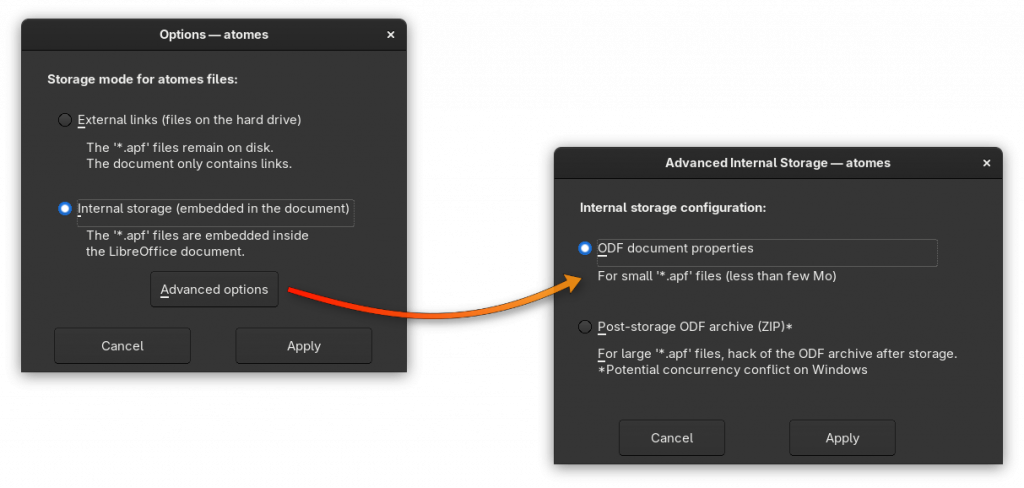
In the extension menu select the Options item, the options dialog offers to switch between internal and external storage for the atomes project files.
It it also possible to configure the mode of internal storage.
If you decide to change the storage mode, then please note that on pressing Apply the storage mode of all atomes project(s) that could be inserted in your LibreOffice document will be modified accordingly, if required internal document(s) could be extracted on the hard drive or vice versa.